Using LM Studio's Chat Interface
Using Ollama models within LM Studio's GUI
This blog post belongs to a three-part series: Running LLMs Locally
- Running LLMs Locally with Ollama
- Ollama Copilot Integration
- Using LM Studio's Chat Interface (this page)
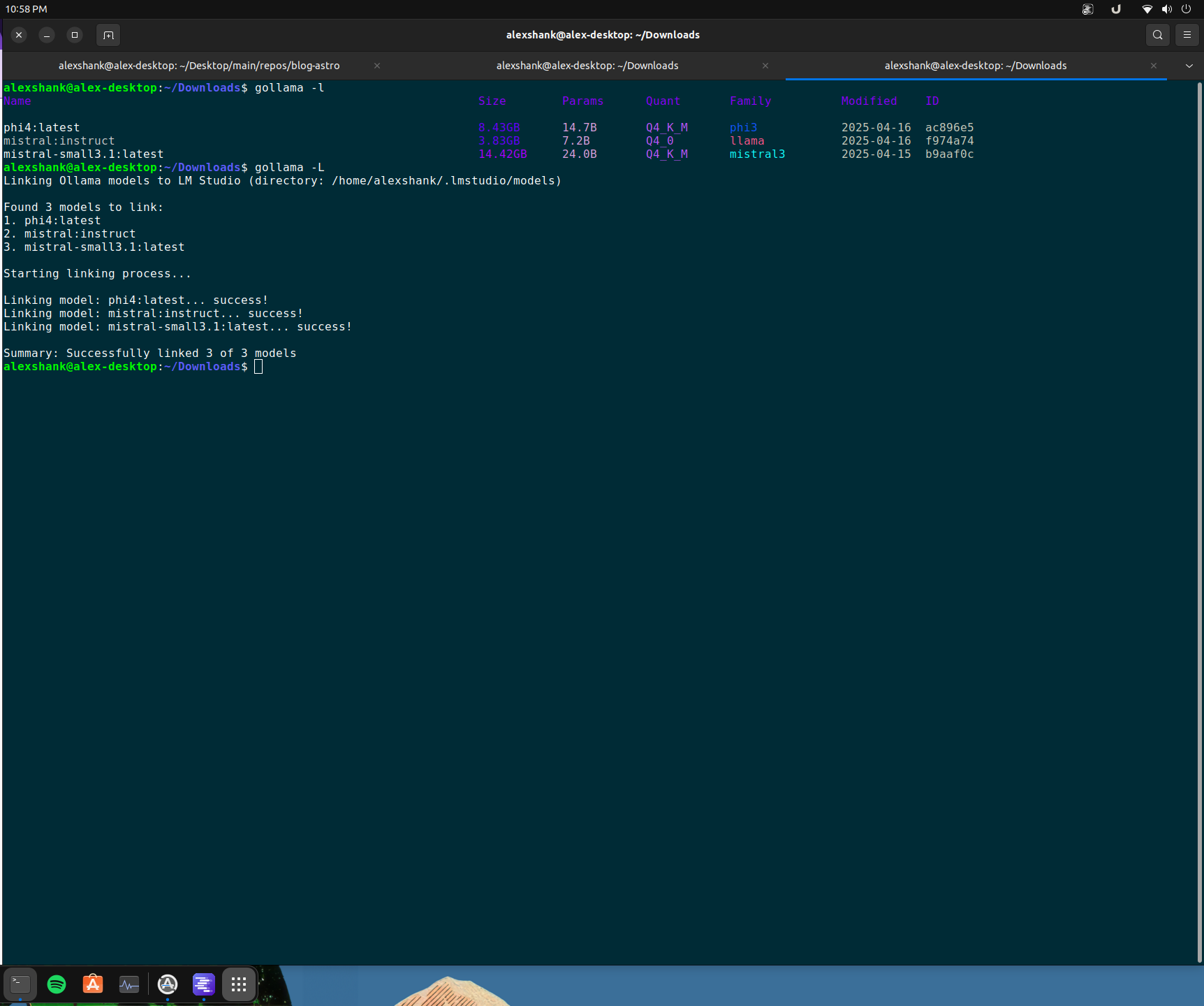
Although Ollama has many of the low level APIs needed to run models and inferencing, it doesn’t have a standard chat interface. We can use our Ollama models within the chat interface of LM Studio with Gollama, though. Let’s go through the setup and then explore the features.
Ollama and LM Studio integration via Gollama is no longer supported. Please see the final section of this post for original setup details. For the most part, I have transitioned fully to LM Studio for local LLM inferencing.
Running LM Studio
First we install the AppImage from the LM Studio releases page. Then, we can run this like any other executable on Linux. However, since LM Studio is an Electron app with a browser-like attack surface, it needs to be sandboxed. To enable this, we need to enable unprivileged user namespaces on our system.
# enable unprivileged user namespaces (sandboxing strategy)
# since this is an Electron app with browser-like attack surface, needs sandboxing
sudo sysctl -w kernel.unprivileged_userns_clone=1
sudo sysctl -w kernel.apparmor_restrict_unprivileged_userns=0

# persist these settings across reboots
echo 'kernel.unprivileged_userns_clone=1' | sudo tee /etc/sysctl.d/99-userns.conf
echo 'kernel.apparmor_restrict_unprivileged_userns=0' | sudo tee -a /etc/sysctl.d/99-userns.conf
sudo sysctl --system

# make the AppImage executable, then execute
chmod +x ./LM-Studio-0.4.2-2-x64.AppImage
./LM-Studio-0.4.2-2-x64.AppImage
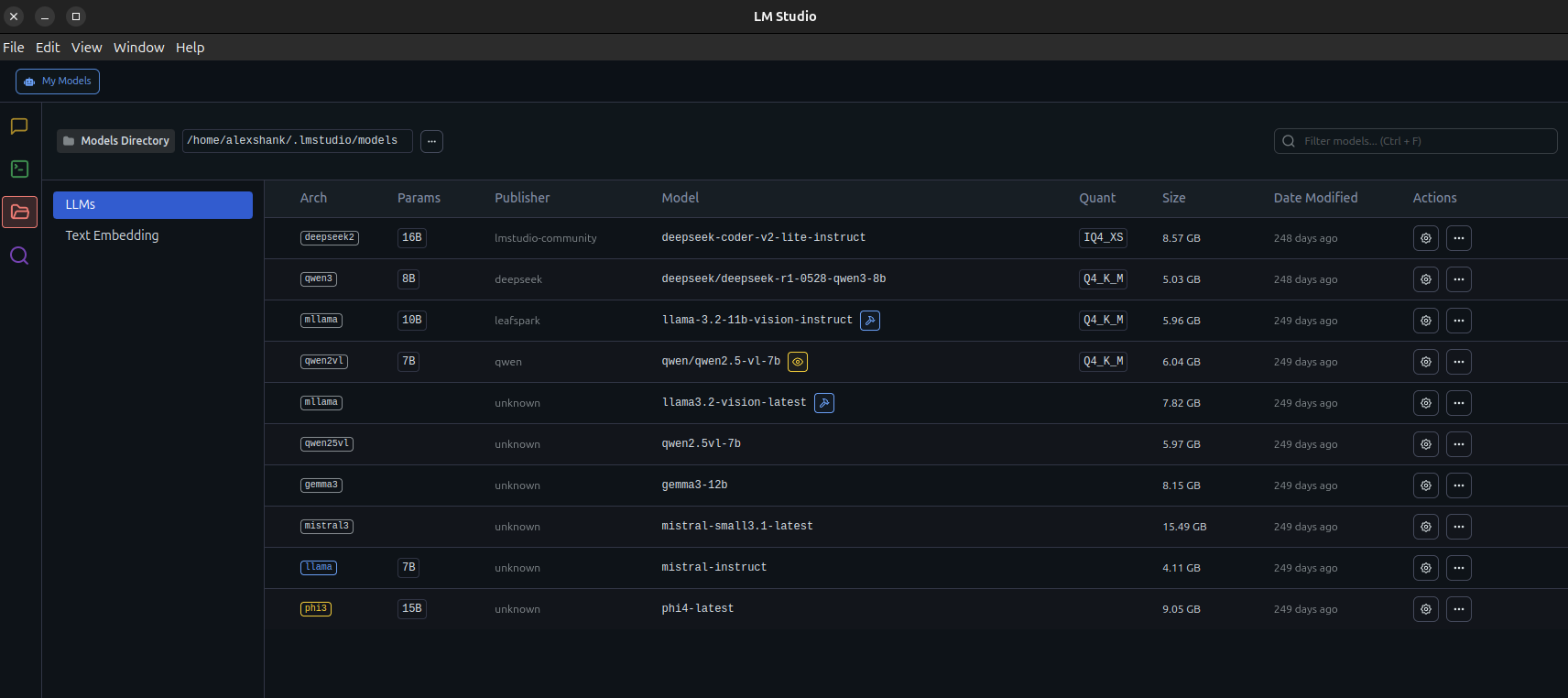
After all this, we should see the LM Studio interface. I’ve already downloaded some models here.
Running Text Prompts
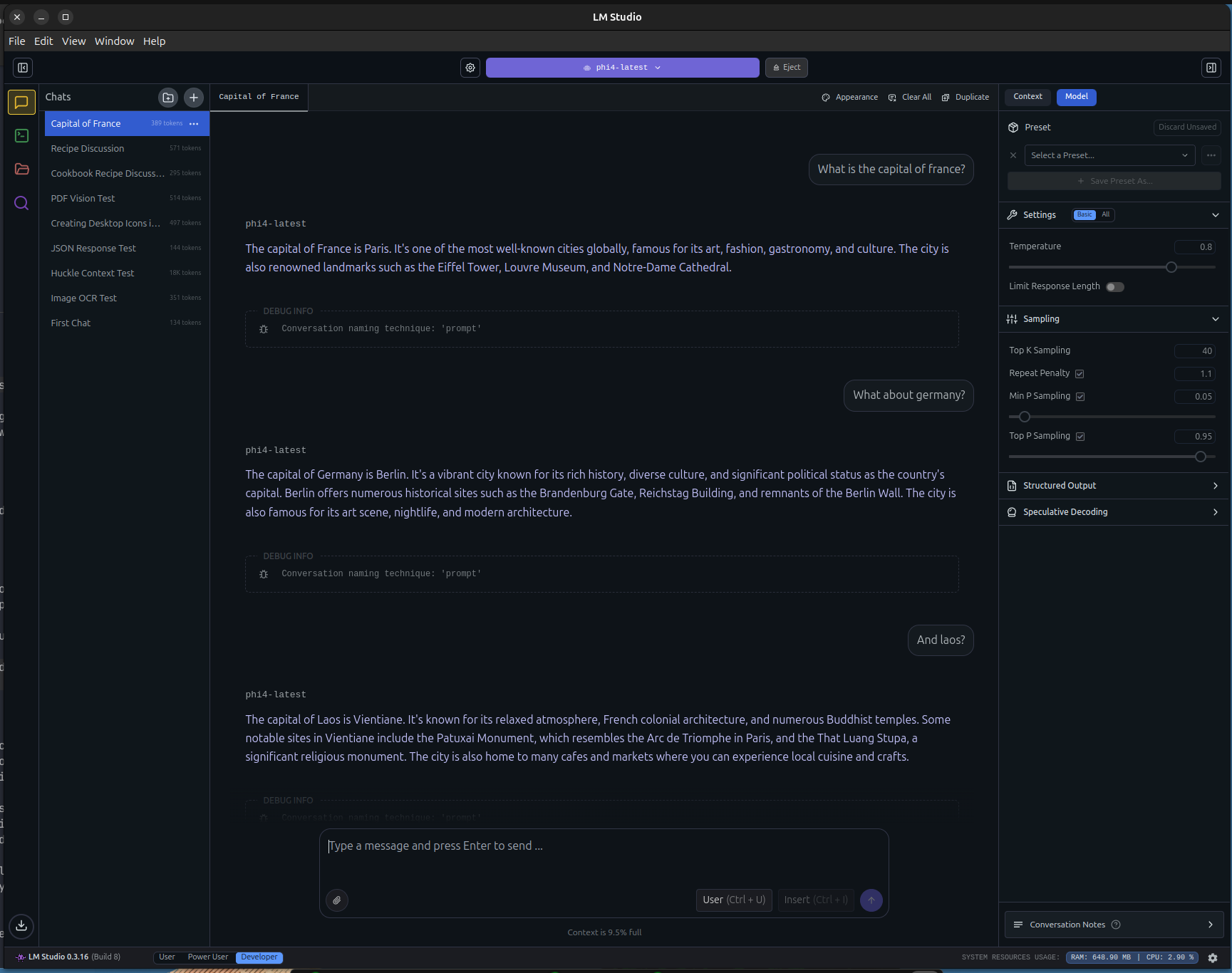
We can run Text -> Text prompts similar to Ollama. We get the nice chat interface and metrics like time to first token and tokens per second.
Running Large Text Prompts
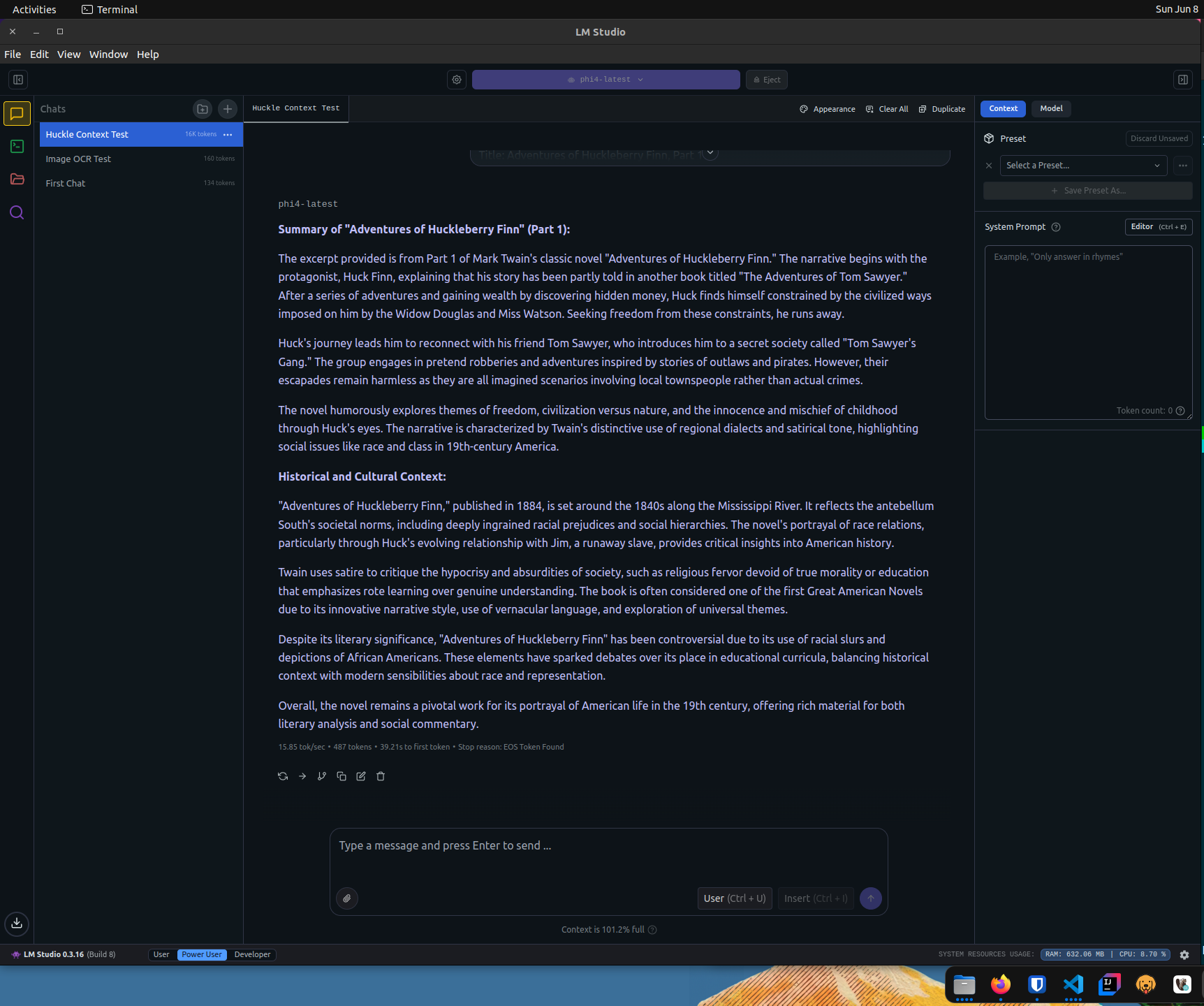
We can also run much larger text prompts, which will test the context window size our model can handle. Here, I provide the complete text of Huckleberry Finn.
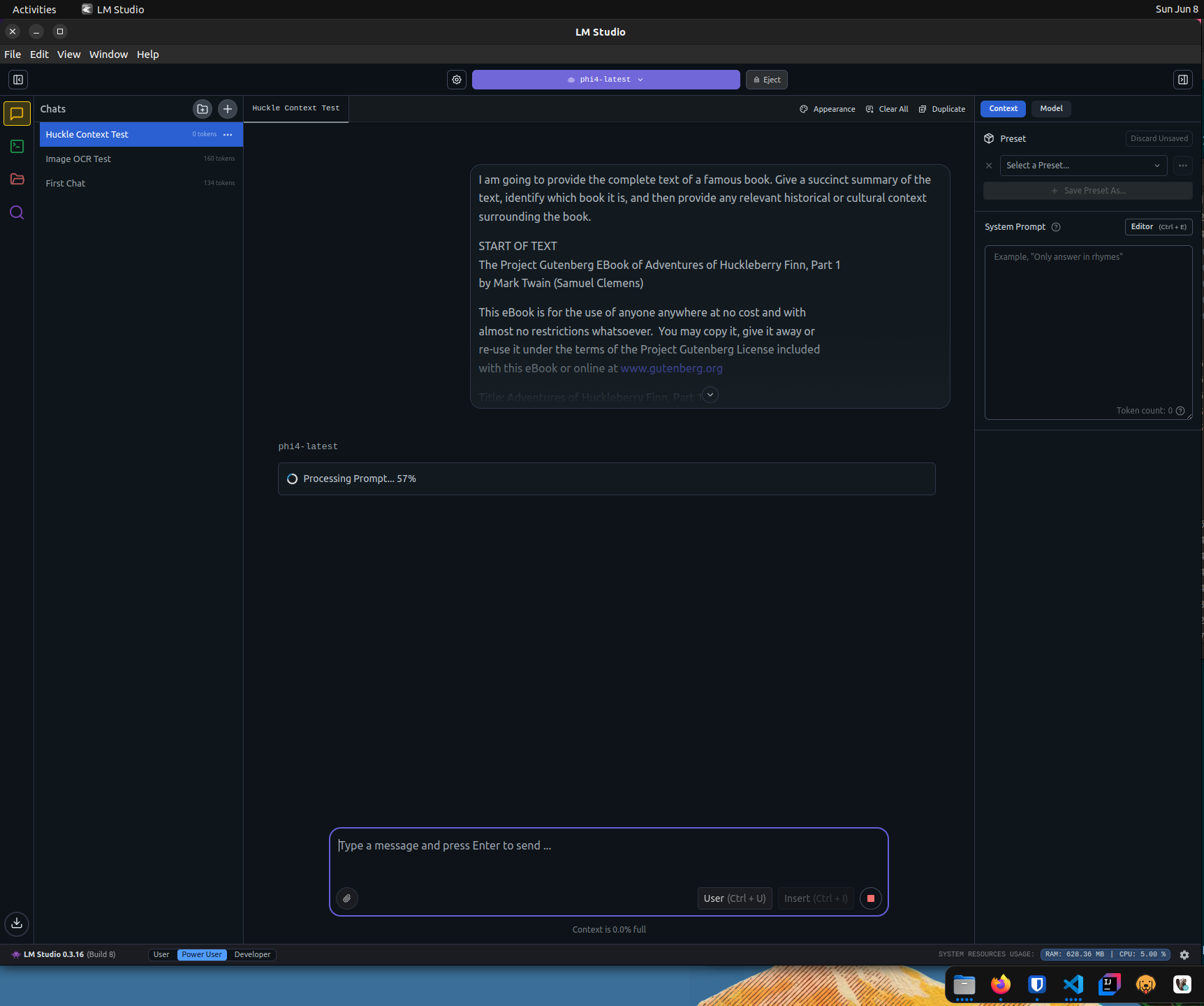
If we were to look at nvtop or nvidia-smi while this was running, we would see both GPU VRAM and GPU cores being heavily utilized. You can spend a lot of time tuning your model choices and context window sizes to maximize GPU utilization.
Multimodal Prompts
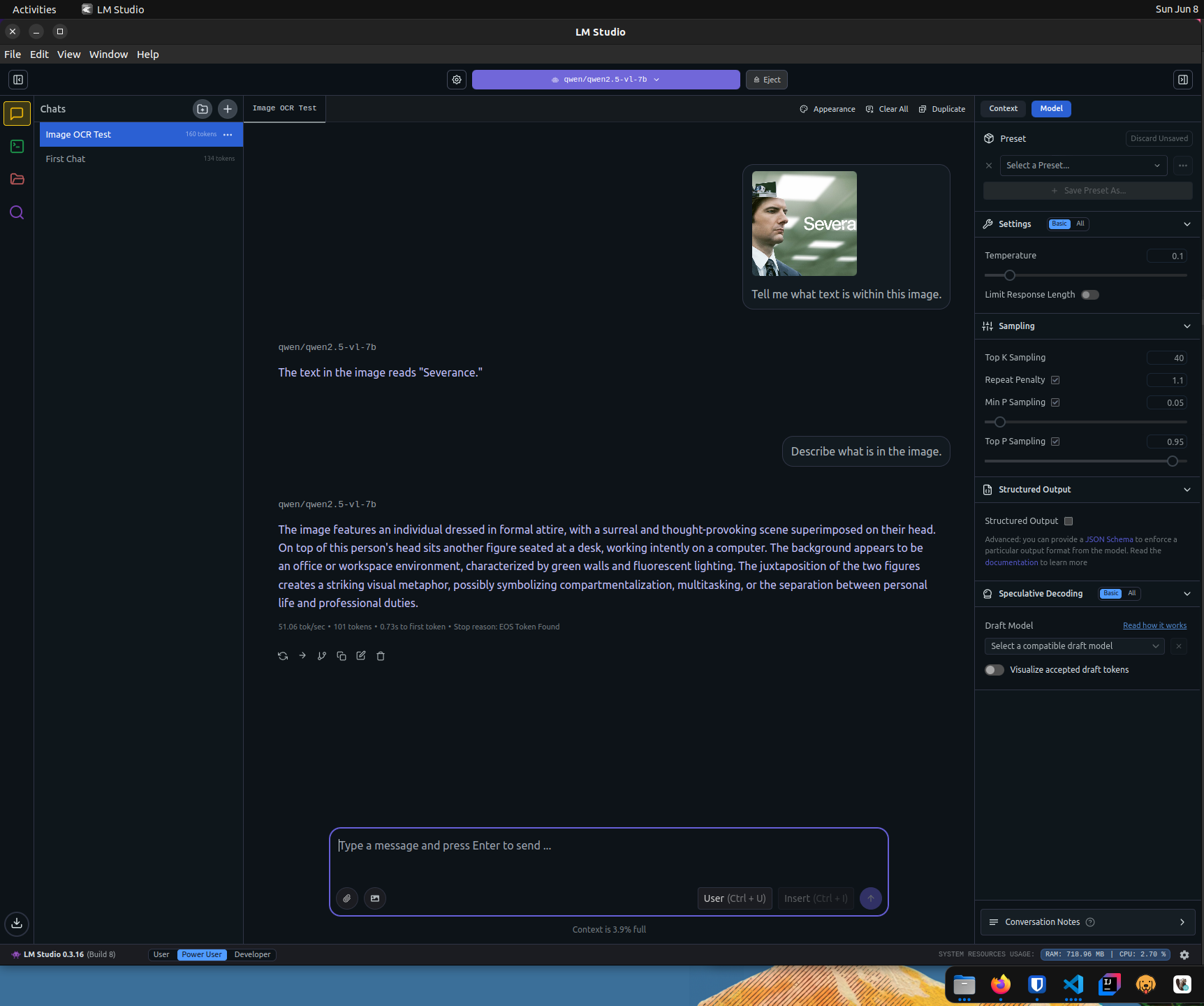
Like Ollama, we can provide images in our prompts if we have a multi-modal model. Note that we are using the qwen-2.5-vl-7b model here, which has vision capabilities that phi4-latest does not.
Structured Response
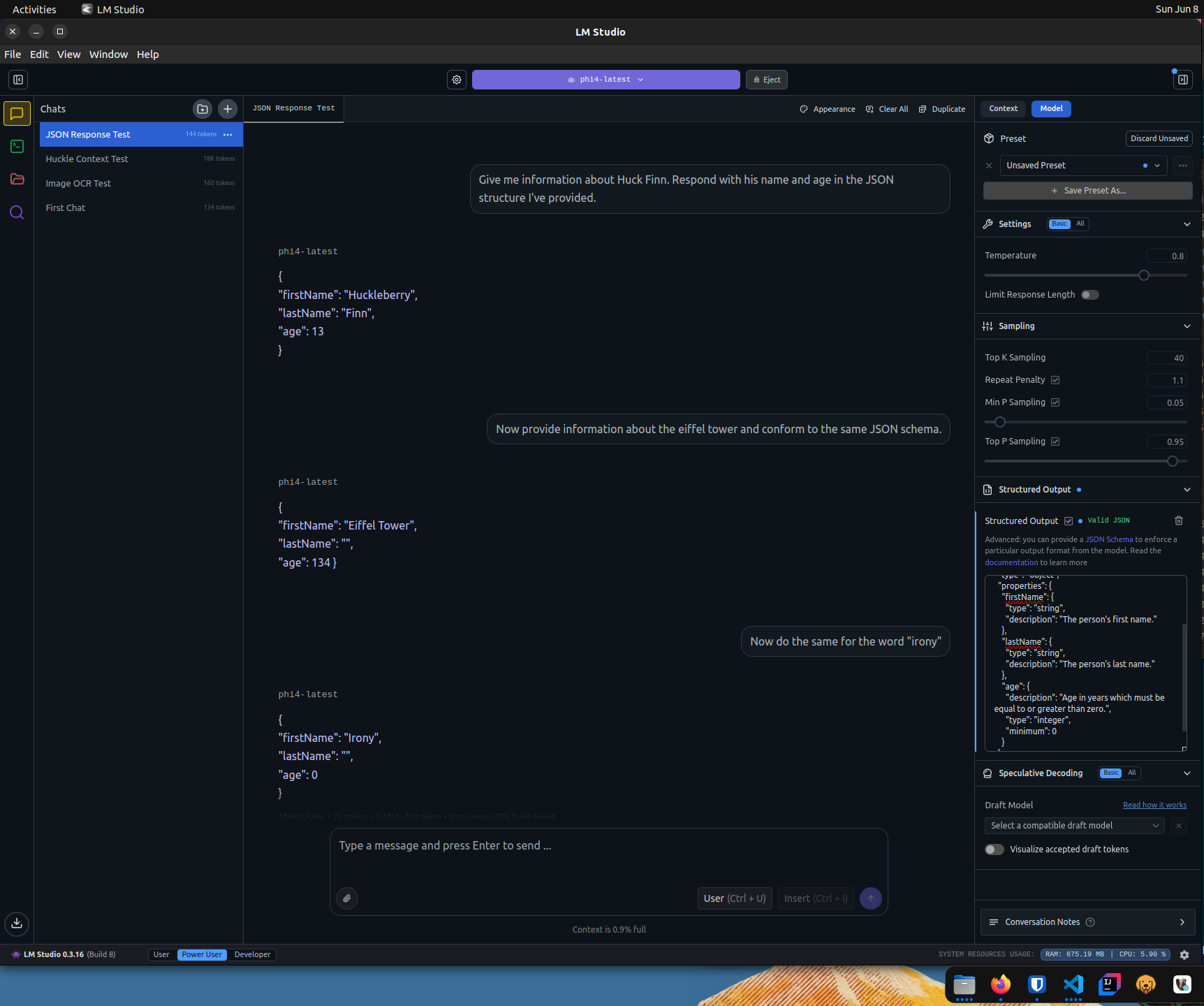
If we need to conform to a particular JSON schema, we can provide it to LM Studio.
Running Gollama
We make Ollama models available to LM Studio by linking them via Gollama.
# install go 1.24.4
rm -rf /usr/local/go && sudo tar -C /usr/local -xzf go1.24.4.linux-amd64.tar.gz
export PATH=$PATH:/usr/local/go/bin
go version
# install gollama
go install github.com/sammcj/gollama@HEAD
echo 'export PATH=$PATH:$HOME/go/bin' >> ~/.zshrc
source ~/.zshrc# link Ollama models to LM Studio
gollama -L